Web UI
Sidecar includes a local web dashboard you can run alongside any project.
It gives you a visual view of your tasks, decisions, worklogs, and timeline — backed
directly by the project's .sidecar/sidecar.db SQLite database.
No build step, no external service.
Starting the UI
Run this from inside any Sidecar-initialized project:
sidecar ui
The server starts on port 4310 by default and binds to 127.0.0.1 only.
Open http://127.0.0.1:4310 in your browser.
You can customize the port and project path:
sidecar ui --port 5000 --project /path/to/project
sidecar ui --install-only
sidecar ui --reinstall
sidecar ui --no-open
The UI will refuse to start if the project has not been initialized with
sidecar init.
Lazy install
The UI runtime is distributed as a separate package. sidecar ui
installs it on first run:
sidecar uiresolves the nearest.sidecarproject root (or uses--project).- Sidecar checks for
@sidecar/uiin~/.sidecar/ui. - If missing or incompatible, Sidecar installs or updates it automatically.
- The UI server starts and opens the browser (unless
--no-open).
The UI lives in ~/.sidecar/ui, not in your project repo. CLI and UI
must share the same major version; if majors differ, sidecar ui
auto-reinstalls the UI. Use --reinstall to force a fresh install,
or --install-only to install without starting the server.
Global actions
The top bar is always visible regardless of which view is active. It has three action buttons:
- Add Note — capture a quick context note, stored directly in the database.
- Add Task — create a new task packet with a title, description, and priority.
- Add Decision — record an architectural or design decision with a title and summary.
The theme toggle (🌙 / ☀) in the top bar switches between dark and light mode. Your
preference is saved in localStorage and applied before the first render to avoid
a flash of unstyled content.
Mission Control
The default view. Mission Control is the primary board for tracking tasks and agent runs.
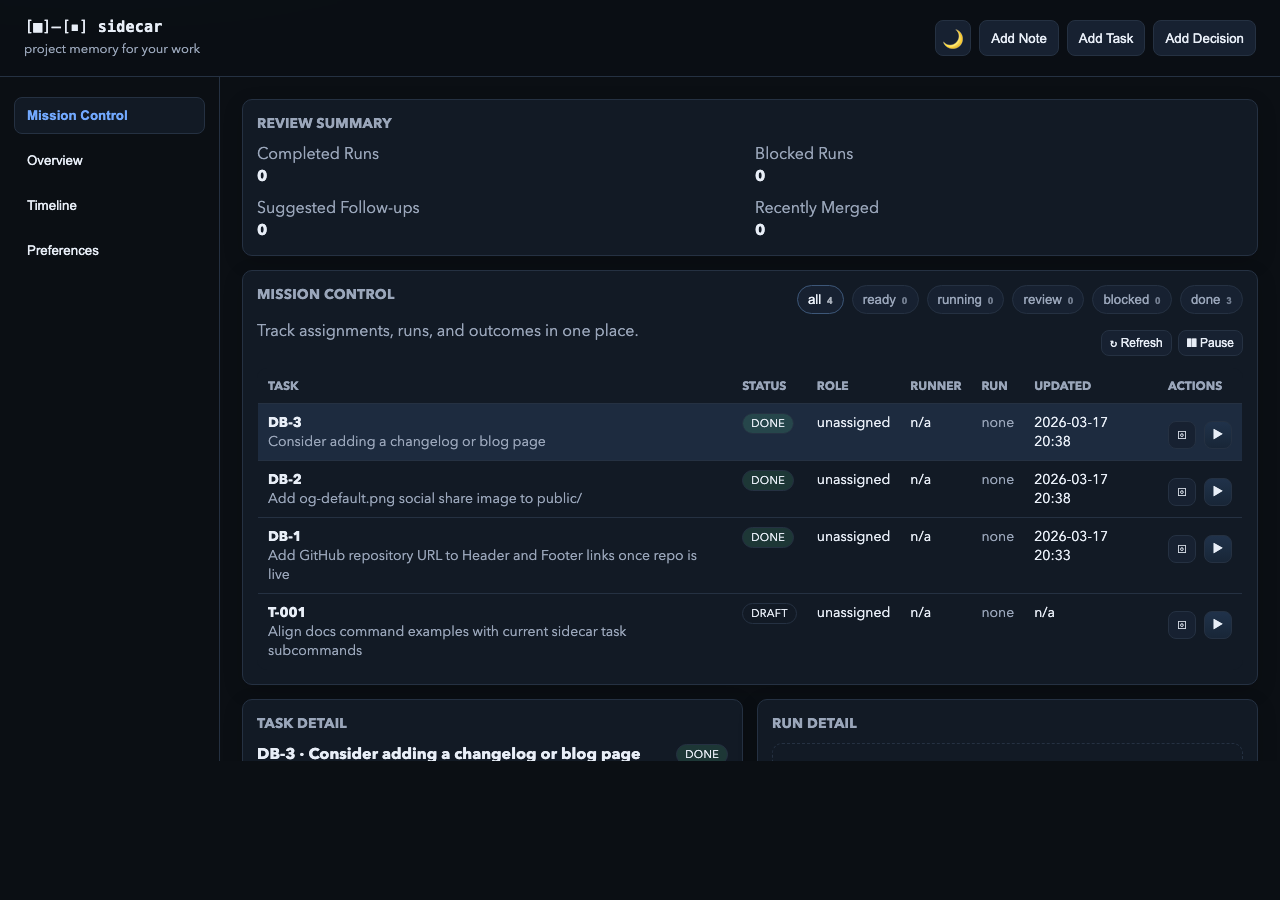
It has three sections stacked vertically:
Review Summary
Four stats pulled from the most recent run activity: Completed Runs, Blocked Runs, Suggested Follow-ups, and Recently Merged. These give you a quick health check at a glance.
Mission Board
A filterable table of all tasks. Filter chips at the top let you narrow by status:
all, ready, running, review,
blocked, or done. Each chip shows a live count.
The table columns are:
- Task — ID and title
- Status — color-coded badge
- Role — assigned agent role
- Runner —
codex,claude, orn/a - Run — the latest run ID, clickable to load run detail
- Updated — timestamp in local time
- Actions — compile prompt or start a run
The board auto-refreshes every 15 seconds. You can pause polling with the Pause button or force a refresh immediately.
Mission Detail
Clicking a task row opens the Task Detail panel below the board. Clicking a run ID opens the Run Detail panel alongside it. From Run Detail you can approve a run, request changes, mark it blocked or merged, or create a follow-up task.
Typed validation rendering Beta
When a run includes typed validation entries
({ kind, command, exit_code, ok, timed_out, duration_ms, output_snippet }),
Run Detail renders each step as a row with a color-coded kind badge
(typecheck, lint, test, build, custom),
a status pill (ok/failed/timed-out), duration, and the
command in monospace. Older string-list validation_results values continue to
render unchanged.
Auto-approve marker Beta
When a run was auto-approved (preferences.review.autoApproveOnAllGreen = true
plus every typed validation step passing), Run Detail shows
approved · by sidecar:auto followed by a small auto-approved chip.
Hover shows the note, for example "Auto-approved: 3 validation step(s) passed".
Replay lineage Beta
Runs created via run replay carry
parent_run_id and replay_reason. Run Detail renders two
extra rows beneath Lifecycle:
- Replay of: — parent run id, with the reason in muted text.
- Replays: — every child run id with its status tag.
Both are clickable anchors that swap the Run Detail panel to the linked run, so a multi-level replay chain is navigable one hop at a time.
Overview
A read-only summary of the project's current state.
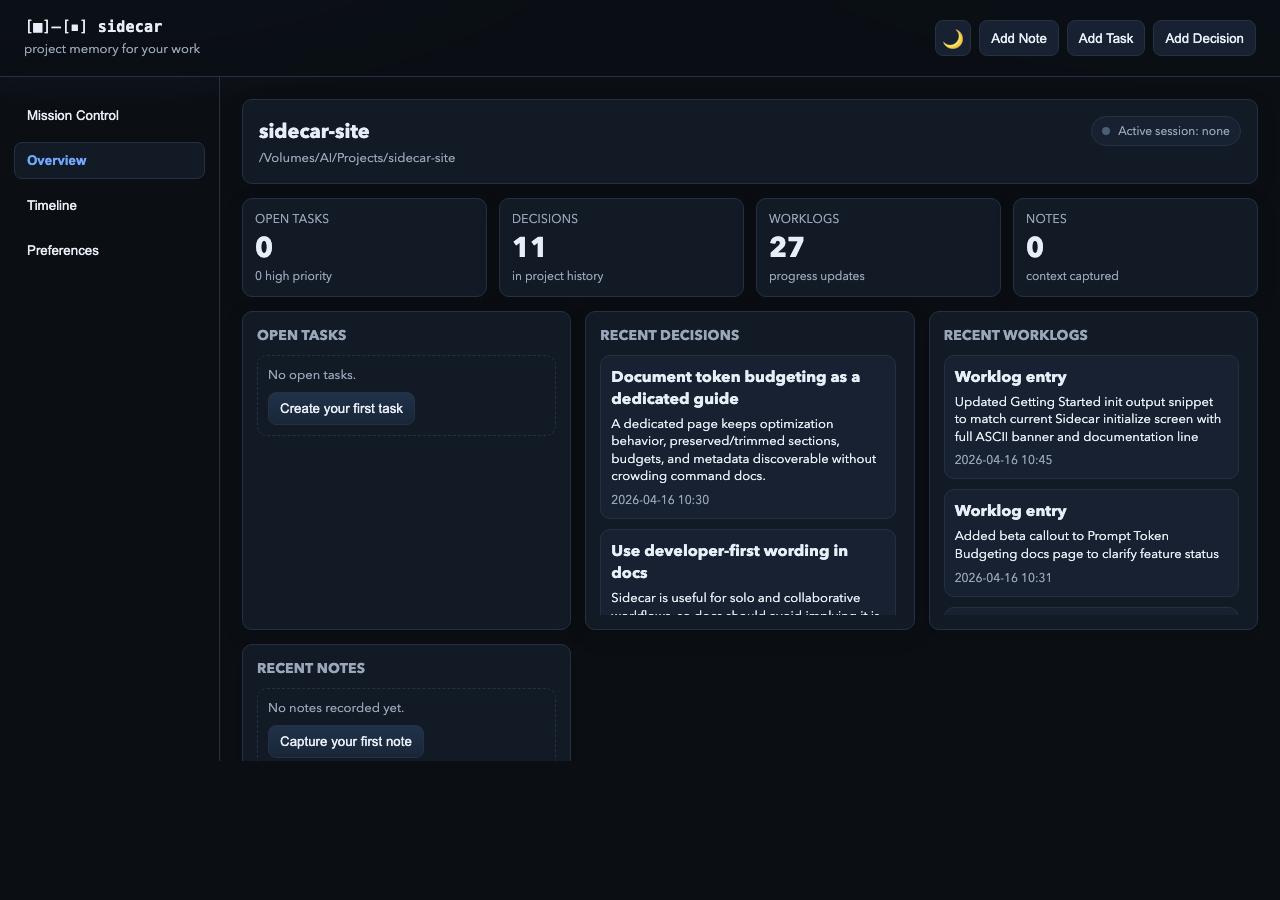
The Overview shows:
- Project card — project name, absolute path, and whether a session is currently active.
- Stat cards — Open Tasks (with high-priority count), Decisions, Worklogs, and Notes.
- Recent lists — Open Tasks, Recent Decisions, Recent Worklogs, and Recent Notes.
If any list is empty, a "Create your first…" button appears inline to open the relevant modal. The Open Tasks card turns an alert style when there are high-priority items.
Timeline
A paginated, filterable log of everything that has happened in the project — decisions, worklogs, notes, task events, and summary refreshes.
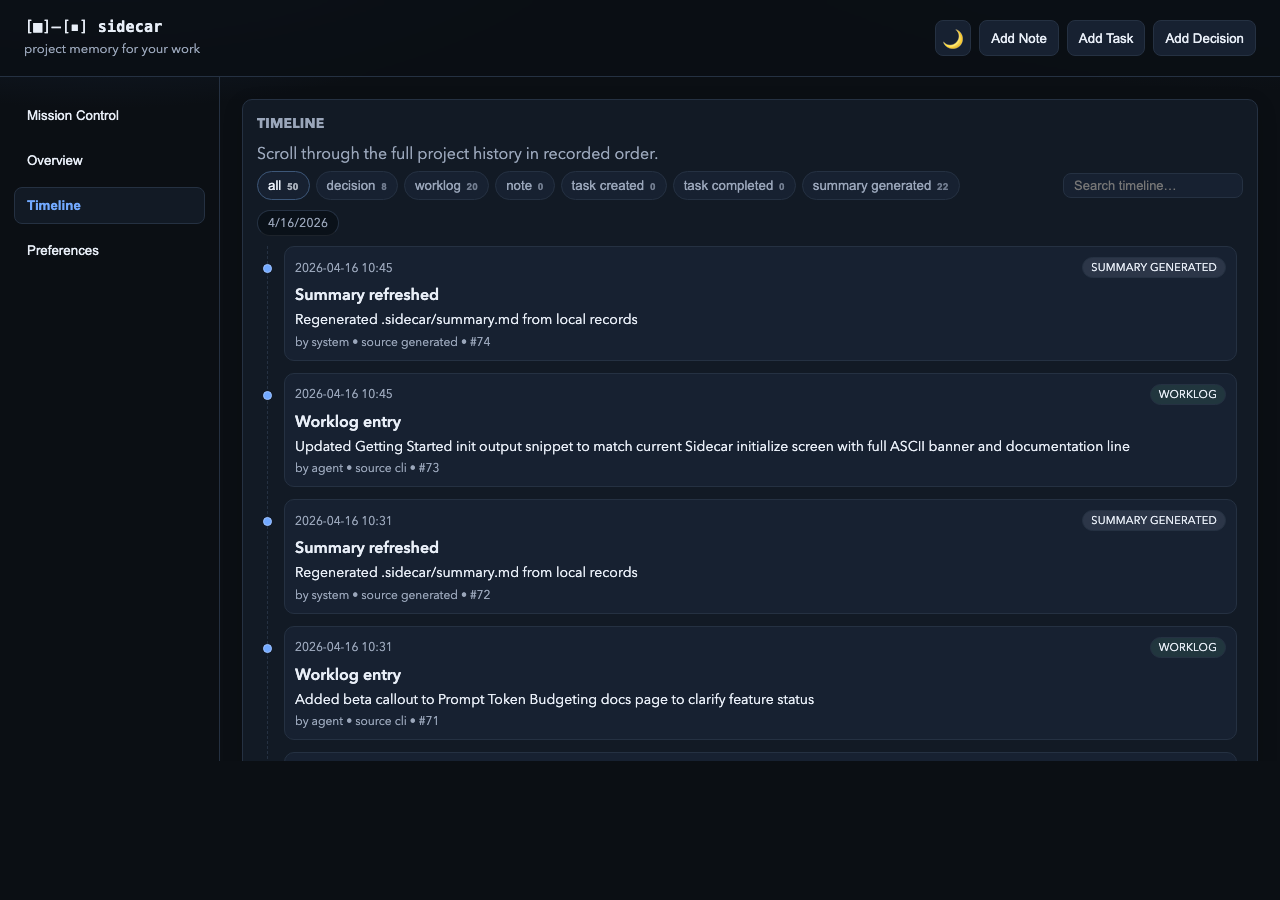
Events are grouped by date in descending order. Each card shows the time, event type, title, summary, and who created it.
Filter and search options:
- Type chips — filter by event type:
decision,worklog,note,task_created,task_completed,summary_generated. Multiple types can be selected at once. - Search — filters by title and summary text. Press
/anywhere on the page to focus the search box. - Load more — timeline loads 50 events at a time; scroll down and click to fetch the next page.
Preferences
View and edit the project's .sidecar/preferences.json file, and
refresh the project summary.
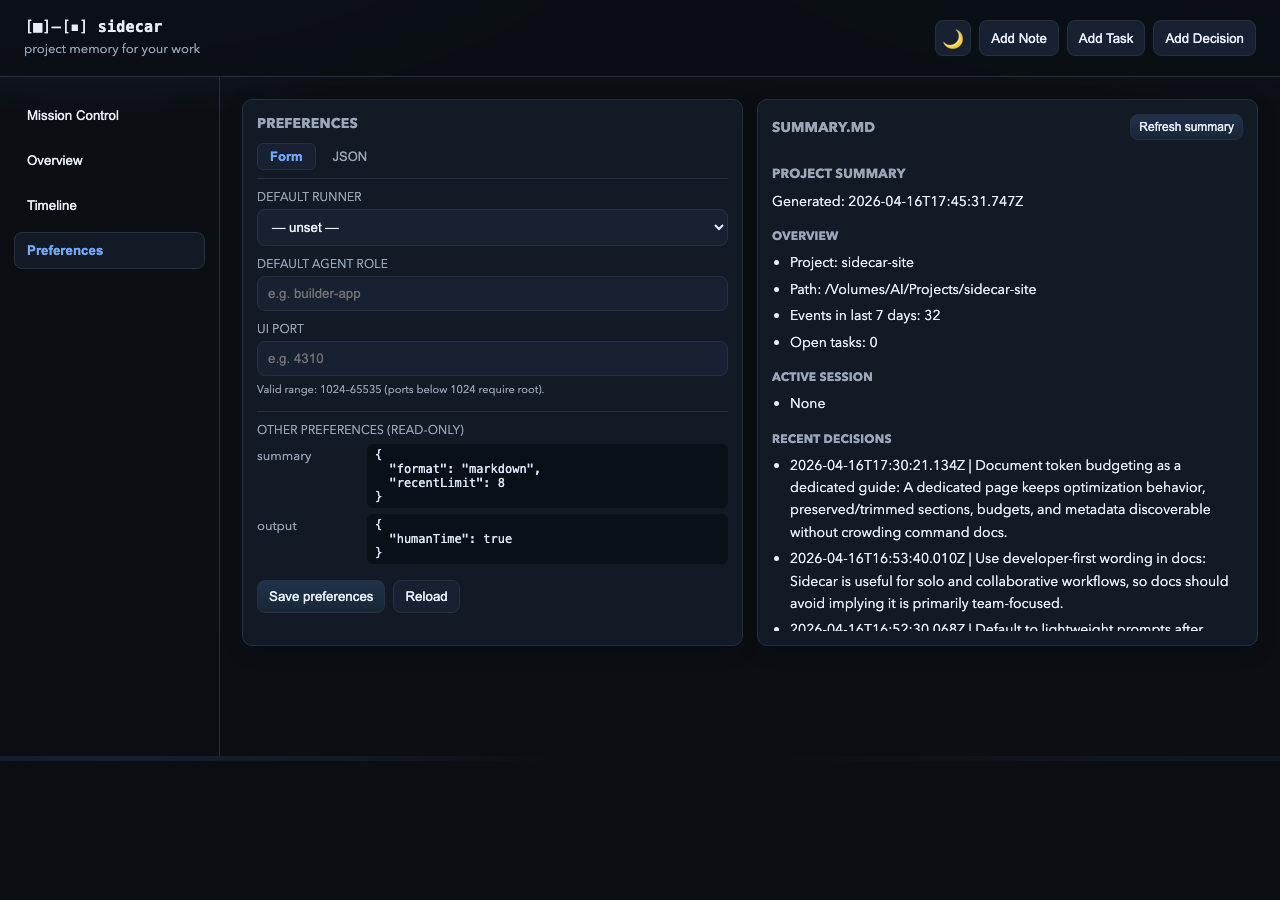
The Preferences view has two panels:
Preferences editor
Switch between Form and JSON tabs. The Form tab surfaces the most common settings:
- Default Runner —
codexorclaude. - Default Agent Role — the role passed to agent runs (e.g.
builder-app). - UI Port — the port the UI server binds to (1024–65535).
Unknown keys from the JSON file appear below as read-only blocks so they are never silently dropped. The JSON tab gives you direct access to the full file. Invalid JSON is caught client-side before saving.
Summary.md panel
Shows the rendered contents of .sidecar/summary.md. Click
Refresh summary to regenerate it from current project data —
equivalent to running sidecar summary refresh from the terminal.
Keyboard shortcuts
| Key | Action |
|---|---|
/ | Focus the Timeline search box (when Timeline is active) |
Escape | Close the open modal or dismiss a toast |
Tab / Shift+Tab | Navigate focus within an open modal (trapped inside the dialog) |